
TV Apps
How to Build Your First webOS TV App: CLI, Developer Mode and Real-TV Testing
Weps Technologies · 20/11/2026 · Updated 20/11/2026
Build your first LG webOS TV app: install the CLI, create and package a project, enable Developer Mode, connect your TV, test and troubleshoot.
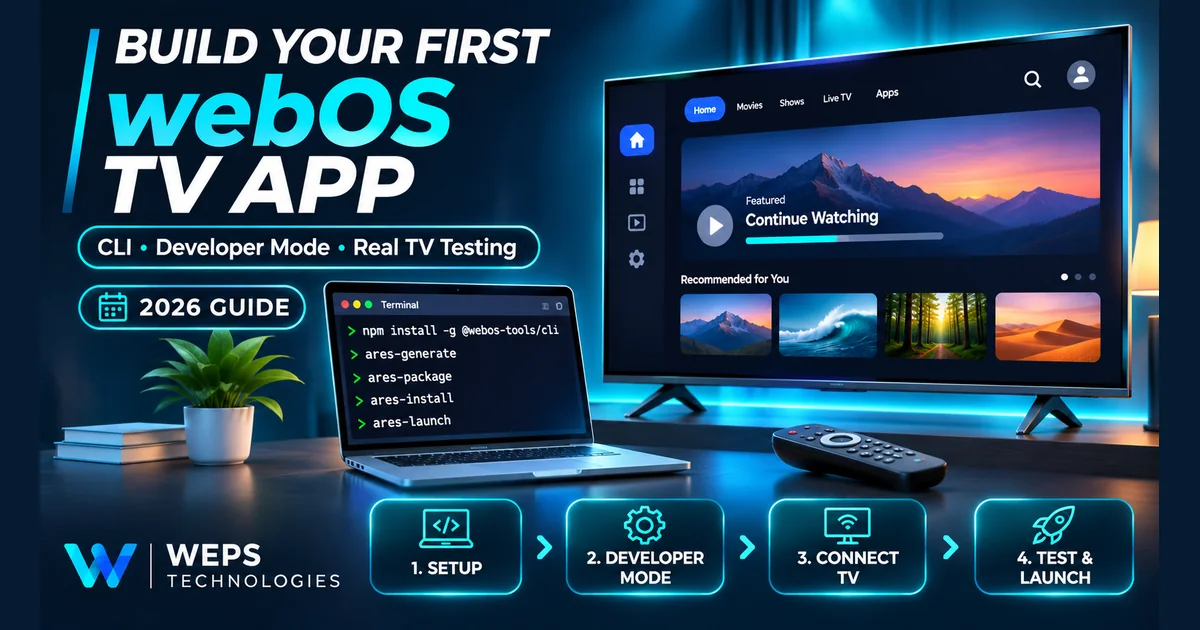
Quick answer: To develop a webOS TV web app, install Node.js and npm, then install LG's current webOS CLI with npm install -g @webos-tools/cli. Create a basic application with ares-generate -t basic ./sampleApp, run it in the webOS TV Simulator, and package it as an .ipk. To test on a real LG TV, sign in to the Developer Mode app, enable it, add the TV as a CLI device, retrieve its SSH key and install the package. Always verify remote navigation, playback and performance on physical hardware before release. The commands below follow LG's official developer guides reviewed on 20 November 2026.
This is a hands-on tutorial for developers. If you need a team to build an app for your company, see our LG webOS TV app development service or our wider TV application development services. For budget questions, read what decides the cost of a TV app.
What is a webOS TV app, and which technology should you choose?
For a broad range of LG TVs, the established development route is a web app built with HTML, CSS and JavaScript. LG provides the webOS CLI, webOS Studio for VS Code and a webOS TV Simulator. You can also build an Enact app using LG's React-based TV framework. A phone or desktop website is not automatically ready for TV: the remote's D-pad, focus movement, screen distance and playback behavior require deliberate design.
2026 update: LG has announced Flutter for webOS TV. The SDK supports webOS TV 26 Re:New and later, so Flutter is not a drop-in route for older models. This article teaches the web-app/CLI workflow because it is applicable to a wider compatibility target. If Flutter is your priority, verify supported model years and plugin availability first. LG: Flutter for webOS TV.
| Approach | Best fit | Compatibility consideration |
|---|---|---|
| HTML/CSS/JavaScript | Web-first apps and broad LG TV model support | Browser capabilities vary by webOS TV year |
| Enact (React-based) | Teams that want TV-focused components and spatial navigation | Confirm supported framework/tool versions and model targets |
| Flutter for webOS TV | Newer compatible LG TV products | LG states it supports webOS TV 26 Re:New and later |
Before starting: what you need
- A Windows, macOS or Linux development computer and a terminal.
- Node.js and npm for the webOS CLI; check the official CLI installation prerequisites for supported environments.
- The webOS TV Simulator for fast local interface checks.
- An LG Developer account, a compatible LG webOS television and the Developer Mode app for real-device testing.
- Your computer and television on the same network; know the TV's local IP address.
Important version caveat: LG's webOS CLI installation page still lists Node.js 14.15.1–16.20.2 as its recommended/verified range. Those are legacy releases by 2026. Treat that as the documentation's compatibility statement, not a recommendation to expose an outdated Node runtime to the internet. Test the current CLI in an isolated, supported development environment and recheck LG's documentation and package requirements before choosing a runtime.
Step 1: Install LG's current webOS CLI
Open a terminal and check the Node/npm tools:
- node --version
- npm --version
Install LG's current CLI and verify it:
- npm install -g @webos-tools/cli
- ares -V
If another ares installation is detected, investigate and remove any deprecated webOS TV CLI or webOS OSE CLI before using the current webOS CLI. LG deprecated the older webOS TV CLI in 2024. On macOS/Linux, global npm installs can fail with EACCES; configure a user-owned npm directory instead of blindly running sudo npm install -g.
Official source: webOS CLI Installation.
Step 2: Generate your first webOS TV app
Use the official basic template:
- ares-generate -t basic ./sampleApp
When prompted, choose an app identifier, title and version. For example, LG's documentation uses com.domain.app, new app and 0.0.1. Use your own unique ID for a real project, not that example ID.
The generated directory includes the app's entry assets and appinfo.json. Before packaging, review its id, title, version, main entry, assets and intended device support. Keep app IDs stable across updates.
New future-proofing requirement: LG's current ACG guidance says that from webOS TV 27 (March 2027), appinfo.json must contain a requiredACG property. Even apps without Luna API calls should declare an empty array:
- "requiredACG": []
This is an illustrative field fragment, not a complete replacement appinfo.json. If the app calls Luna services, declare the correct groups rather than leaving the array empty. Some webOSTV.js helpers call Luna services internally. See LG's ACG guide.
Step 3: Test the app with the webOS TV Simulator
Install an appropriate webOS TV Simulator. With an installed simulator version available, LG's getting-started guide provides an example command:
- ares-launch -s 24 ./sampleApp
Replace 24 with a simulator version actually installed on your machine. This command launches the unpackaged project in a simulator. It does not install the app on a real television. Use the simulator to inspect layout, focus, navigation and common JavaScript flows.
The simulator is not a substitute for physical TV verification. LG explicitly says it does not support DRM; video/audio capabilities can differ from real hardware, and some Luna/webOSSystem methods are unavailable. LG also deprecated its older Emulator for new webOS TV releases; use the Simulator for current everyday work. Simulator limitations · Emulator deprecation.
Step 4: Enable Developer Mode on your LG TV
Connect the TV and your development computer to the same network. On the TV, open LG Apps, search for Developer Mode, install it and launch it. Sign in using your LG Developer site account (not a sample credential). Turn on Dev Mode Status. The TV reboots.
Developer Mode is a temporary environment. LG says it can be disabled after 10 restarts while disconnected from the network, or after a restart once session time has expired. When it turns off, apps installed through Developer Mode are uninstalled. Keep track of remaining session time and extend it before expiry where the TV offers that option.
Official source: LG: App Testing with Developer Mode App.
Step 5: Connect the real TV to the CLI
Open the interactive device setup:
- ares-setup-device
Choose add and enter a friendly device name (for example myTV), the television's local IP address, port 9922, SSH user prisoner, and an optional description. LG says there is no password to enter for this Developer Mode connection.
Verify the saved profile:
- ares-setup-device --list
On your TV's Developer Mode screen, turn on Key Server. Retrieve a key with your chosen profile name:
- ares-novacom --device myTV --getkey
Enter the six-character, case-sensitive passphrase shown on the television. This passphrase is temporary; do not publish it, any generated private key, or account credentials in screenshots or logs.
Then verify device information:
- ares-device --system-info --device myTV
If the connection is successful, the CLI returns device details such as model and firmware data. LG: TV-to-PC connection steps.
Step 6: Package, install and launch your application
After connecting to myTV, package your project:
- ares-package ./sampleApp
The output is an .ipk file named using your app ID and version. The following example assumes LG's sample appinfo.json; replace the file name and ID with the output generated by your project:
- ares-install -d myTV com.domain.app_0.0.1_all.ipk
- ares-launch -d myTV com.domain.app
The first command installs the package to your connected TV; the second launches it. Device Mode installation does not mean the app is published in the LG Content Store. That is a separate Seller Lounge submission and review process.
Official source: LG: Build Your First App for webOS TV.
Step 7: Test on a real television, not only in a simulator
| Test | What success looks like |
|---|---|
| Remote/D-pad | Every interactive element is reachable; focus is visible; Back behaves predictably |
| Magic Remote | Pointer interaction is usable without breaking directional navigation |
| Media playback | Start, pause, seek and recovery work on supported models |
| DRM, if applicable | Protected playback is verified on real approved devices with a valid licence path |
| Network | Loading, retry and reconnect states behave acceptably on slow/interrupted Wi-Fi |
| Device compatibility | Your oldest promised model year is tested, not just a recent premium TV |
| Performance | Memory, startup and navigation remain acceptable on physical hardware |
| Lifecycle | App resumes and restores state sensibly after backgrounding, sleep or network changes |
| Developer Mode | Session expiry and the uninstall behavior are understood by the team |
Record tested TV model, webOS version, firmware, date, outcome and unresolved issues. That matrix is more trustworthy than a blanket statement that the app was “tested on LG TVs.”
webOS Studio vs CLI: which should a beginner use?
The CLI is enough to create, package and run a web app; use whichever editor you prefer. If you want an integrated VS Code workflow, install webOS Studio after the CLI. It provides project and device management, simulator launch and debugging actions. LG's Studio installation guide says emulator features do not support Apple Silicon Macs. On Apple Silicon, prefer supported simulators and physical TV testing rather than assuming VirtualBox-based Emulator support. webOS Studio Installation.
Troubleshooting common problems
| Problem | First checks |
|---|---|
| ares is not recognised | Confirm installation, npm global binary path and shell PATH; check for an obsolete CLI conflict |
| npm install returns EACCES | Change global npm installation prefix to a user-owned directory; do not expose system permissions unnecessarily |
| TV cannot be found | Confirm same LAN/subnet, actual TV IP, active Developer Mode and port 9922; check firewall isolation |
| ares-novacom fails | Enable Key Server, re-check device name, passphrase case and session validity |
| App disappears after TV reboot | Check whether Developer Mode expired or was disabled; LG can remove apps installed under Developer Mode |
| Video works in simulator, not TV | Inspect TV model/codec/stream compatibility, permissions, network, licence setup and hardware logs |
| Luna API access is denied | Review requiredACG entries against LG's API-specific permission table |
| App works on a new TV only | Re-check older web engine, memory, media support and remote interactions on the actual oldest supported TV |
What changes when you want to publish the app?
The basic workflow above is for development and test. Public distribution is a separate project: check LG Seller Lounge account eligibility, store assets, privacy requirements, remote behavior, supported device range, submission materials and real-device QA. LG review and approval remain outside a developer's control. Where webOS TV 27 is targeted, include mandatory ACG declarations in your release-readiness checks.
If you are comparing a vendor's quote, ask which TV model years, real-device tests, playback rights, DRM dependencies, store submission and post-launch support are included. Our webOS service page explains the delivery scope. For an implementation estimate, compare device coverage, media requirements, QA and LG Seller Lounge submission as separate line items.
Frequently asked questions
Can I build an LG webOS TV app without owning a TV?
You can start with the webOS TV Simulator, write UI and JavaScript, and inspect navigation. However, you need physical hardware to validate real-device playback, memory performance, remote behavior and any DRM integration.
What is the difference between webOS CLI and webOS Studio?
The CLI supplies terminal commands for generating, packaging, installing, launching and debugging. webOS Studio is an optional VS Code extension that provides an integrated interface and depends on the CLI.
Which CLI package should I install in 2026?
LG's current CLI installation page names @webos-tools/cli. The older webOS TV CLI was deprecated in 2024. Check LG's current instructions if you are upgrading an older environment.
Can I use Flutter for webOS TV?
Yes, for the device/software range documented by LG. LG's announcement specifies webOS TV 26 Re:New and later; do not assume it supports older webOS TVs.
Why do Developer Mode apps disappear?
LG can disable Developer Mode after session expiry or the documented offline-reboot condition. It removes the apps installed under that development environment when the mode turns off.
Is DRM supported in the webOS TV Simulator?
No. LG's simulator limitations explicitly state that DRM is not supported, so protected video must be validated on compatible real hardware.
Does enabling Developer Mode publish my app to LG's store?
No. Developer Mode permits local testing. Public distribution requires the separate LG Seller Lounge process and approval.
What is requiredACG in appinfo.json?
It declares the Luna service permission groups your app requires. LG says it becomes mandatory on webOS TV 27 even when the application needs no Luna services; in that case, an empty array is required.
Need help shipping an LG webOS TV app?
WEPS Technologies works on LG webOS, Android TV and Apple TV application development. For a scoped estimate, share your intended audience, target TV model years, core screens, playback type and backend readiness through our contact form or at +91 97193 25253. We will discuss assumptions before pricing. This guide is educational and does not claim that any individual LG deployment or store approval has already been achieved by WEPS.
WEPS Technologies is independent and is not affiliated with LG Electronics.
Official references and update notes
- LG: webOS CLI Installation
- LG: Build Your First App
- LG: Developer Mode App
- LG: Simulator Introduction
- LG: webOS Studio Installation
- LG: Flutter for webOS TV announcement
- LG: Access Control Group (ACG)
Technical documentation reviewed on 20 November 2026. TV software, tool versions and store requirements can change; check LG's current instructions before implementing a new project.